Use AION 2 timers for published event deadlines and your own explicit reset or observation rules. Convert source times into a chosen zone, keep the evidence visible and leave unknown schedules unknown.
AION 2 timers in your chosen time zone
Official dates below come from a published Global notice, not a live server feed. Seconds show time until the published minute, not extra precision from the source.
Ludra Conquest Check-In
Check the event deadline before planning remaining login rewards.
Published event window
JavaScript converts this schedule into a countdown.
Odyle Energy Boost: before 2026-11-10 Pacific / 2026-11-11 Central European maintenance. Exact clock time not established.
Ludra Hunt: before 2026-11-24 Pacific / 2026-11-25 Central European maintenance. Exact clock time not established.
Plan a personal timer
Use a rule you can verify. A personal timer does not become an official schedule because it appears beside the sourced event list.
Choose a mode and enter its source time.
Runs while this page is open. No background notification permission is requested. Save is optional and local to this browser.
What these AION 2 timers track
Three different clocks answer three different questions: when a published campaign closes, when your chosen reset rule next occurs, and when an observation-based window might open. Keep their labels separate. Only the event cards above use the linked Global announcement; the personal planner uses values you supply.
This page does not claim a live world-boss feed. It converts published dates and performs transparent time arithmetic. A countdown becoming zero does not prove a reward was claimed, a boss appeared or a server completed maintenance. Read the source conditions before organizing play around an entry.
Use the current official event windows
The Ludra announcement ↗ gives a shared November 4–18 UTC window for Conquest Check-In, Twitch Drops and Daeva Bootcamp. The notice’s Pacific and Central European clock labels agree on the same instants. Those conversions, the review date and the source link remain visible beside every event.
A deadline is not reward eligibility
Check-In concerns its announced reward track; Drops also depend on eligible viewing and account conditions; Bootcamp is a community activity. Their matching deadlines do not make their completion requirements interchangeable. The source publishes minutes, so this website does not claim a newly measured second-level cutoff.
Handle maintenance-only dates honestly
Odyle Energy Boost and Ludra Hunt are described as ending before named maintenance dates. The reviewed notice does not establish an exact maintenance start instant for those entries. They therefore appear as date notes, with no invented midnight deadline or countdown.
When a later official notice supplies a clock time, match its region and date before using it. A maintenance estimate is also different from a guaranteed reopening time. Keep your source note with any personal appointment instead of turning an uncertain window into a precise server promise.
Follow one instant through the time-zone diagram
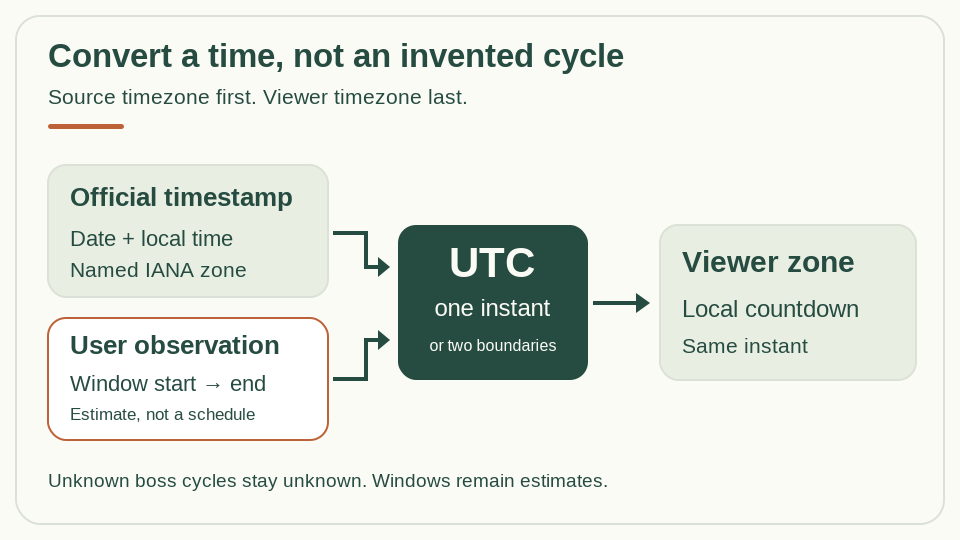
Original time-conversion diagram. A zone changes the displayed clock, not the underlying instant.
Convert the source clock before planning
Source zone and display zone have different jobs
The source zone interprets the date you type. The display zone changes how the resulting instant is shown. For example, November 6 at 17:00 in Asia/Taipei is November 6 at 09:00 UTC. Choosing another display zone should describe that same appointment, not move it.
Use an IANA name such as America/Los_Angeles or Europe/Berlin rather than an unexplained server-time label. Region names alone do not identify a clock. The personal timer requires an explicit source zone; automatic visitor-zone detection is only a display convenience, not evidence about the game server.
Resolve daylight-saving clock changes
Some local times never happen
When clocks jump forward, a typed local time may not exist. A one-time appointment or observation at that time is rejected so you can correct it. For a recurring calendar rule, a nonexistent occurrence is skipped rather than silently moved to another hour.
Some local times happen twice
When clocks fall back, the same wall-clock minute can identify two instants. Choose the earlier or later occurrence explicitly. In Los Angeles on November 1, 2026, the two occurrences of 01:30 are one hour apart. A fixed UTC offset and an IANA seasonal clock are not interchangeable rules.
Create a one-time appointment
Select One-time event, enter a clear label, source zone and local date, then start the timer. The result shows your chosen display time and its UTC equivalent. Check both before copying the summary or saving it for later.
When the date passes, the result stays at zero and identifies the entered date as reached. It does not shift to tomorrow, next month or next year. Editing a field clears the previous result, preventing a changed date from retaining an apparently valid old countdown.
Plan daily and weekly resets
The personal reset modes repeat a wall-clock rule you enter. Daily needs a time and source zone; weekly also needs a weekday in that same source zone. This bounded source review did not establish a universal Global reset hour, so the form supplies no pretend official default.
Check the next occurrence
The next reset is strictly after the current time. At an occurrence, the planner advances that declared recurring rule. Its local hour stays the same across seasonal clock changes, even when the elapsed interval differs from exactly twenty-four hours. This recurrence never applies to the official campaign cards.
Keep observations as windows
For an uncertain activity, record the last observation and your minimum and maximum minute bounds. A hypothetical observation at 10:00 UTC with thirty-to-sixty-minute bounds creates a 10:30–11:00 window. That arithmetic describes your supplied bounds; it does not establish an AION 2 spawn cycle.
The result distinguishes before-window, within-window and window-passed. Once the latest time passes, it stays passed until you supply a new observation. A future observation, reversed bounds or missing quantities are rejected. Zero is accepted only when explicitly entered; an unknown duration must not silently become zero.
Check the browser clock and page state
Countdowns compare absolute timestamps with your device clock. A wrong system clock can therefore produce a wrong remaining time even when the source date is correct. Verify your device settings if several unrelated dates appear shifted.
The display is recalculated from time, rather than subtracting one second on every browser callback. This limits drift when a tab is throttled. It is still a page tool: closing the tab stops its display, and it provides no background alarm, push notification, live-server query or automatic reward action.
Save a useful timer note
Save personal timer keeps its mode, region, source zone, display zone and source note in this browser. One-time events and observations also retain their absolute anchor, so loading them does not replace an old date with today. Loading restores entries for review; press Start timer deliberately after checking them.
Clear saved timer removes the stored record while leaving current entries alone. Browser storage may be unavailable or erased. Copy summary supplies a portable text record, and a manual selection fallback appears if clipboard access fails. Keep account details out of notes; Privacy explains the actual local-storage behavior.
Prepare the task between scheduled activities
A spare interval is useful for planning, not a reason to invent a spawn estimate. Use the pet-source directory to check a collection target independently of this timer page. Its selected pet references are not a world-boss map.
Before a planned group session, the class comparison can clarify the role you want to practise, while the skill worksheet records the constraints of a loadout. Neither tool confirms event eligibility or predicts a campaign reward.
Watch a real website timer demonstration
The recording uses Load hypothetical example to place a personal appointment roughly five minutes ahead in UTC. It then starts the countdown and demonstrates a display-zone change. These are real website operations with clearly labeled sample data, not footage proving a boss schedule or game-client reset.
Walkthrough transcript
Read the official event cards and their source precision.
Load the hypothetical example and start the personal UTC appointment.
Compare the displayed date with UTC, then change display zone and restart.
Save and load the reviewed absolute date rather than treating the sample as game data.
Timer questions
Where is the guaranteed world-boss spawn countdown?
No verified universal Global spawn cycle was established here. Use the game’s applicable schedule or a current official notice; a personal observation window remains an observation.
Will an event automatically renew?
No. Published campaign deadlines remain tied to their recorded dates. A revised announcement needs a new source check, not an assumed repeated period.
Can I recover a timer on another device?
Not automatically. Local saving is browser-specific. Copy the summary and verify its absolute date and source zone before entering it elsewhere.
Optional analytics
Choose whether to allow optional Google Analytics. Adsterra banner and native ads load automatically, independently of this choice.